
Assignment identifies who is responsible for the next action in an Inbox conversation. It helps the team avoid duplicate replies and makes it clear who should continue when a customer is waiting.
An assignment does not mean the customer has received a response, and it does not close or snooze the conversation. Signals such as Needs attention also remain separate from the assigned owner.
Understand what you can assign from the Inbox
From an individual conversation, the Assign menu can show:
- Other teammates in the business.
- AI agents associated with that conversation.
The manual Inbox menu assigns a specific teammate or AI agent. A team becomes the target through playbook escalation, journey Assignment steps, or another routing rule. Hellotext then chooses an eligible teammate from that team or keeps the conversation waiting for the team when nobody has capacity.
Assign an unassigned conversation to yourself
- Open Inbox and select an unassigned conversation.
- Select Assign to me in the conversation header.
- Confirm that your avatar appears as the assignee.


Replying to an unassigned conversation also normally assigns it to you automatically. This only happens when you are allowed to claim that conversation.
If a routing or escalation rule is already holding the conversation for a specific team, only a member of that team can claim it by replying. Review the conversation context before taking work that may already have a destination.
Assign or reassign a conversation to a teammate
- Open the conversation.
- Open the Actions menu in the conversation header.
- Select Assign.
- Choose the teammate who should own the next action.
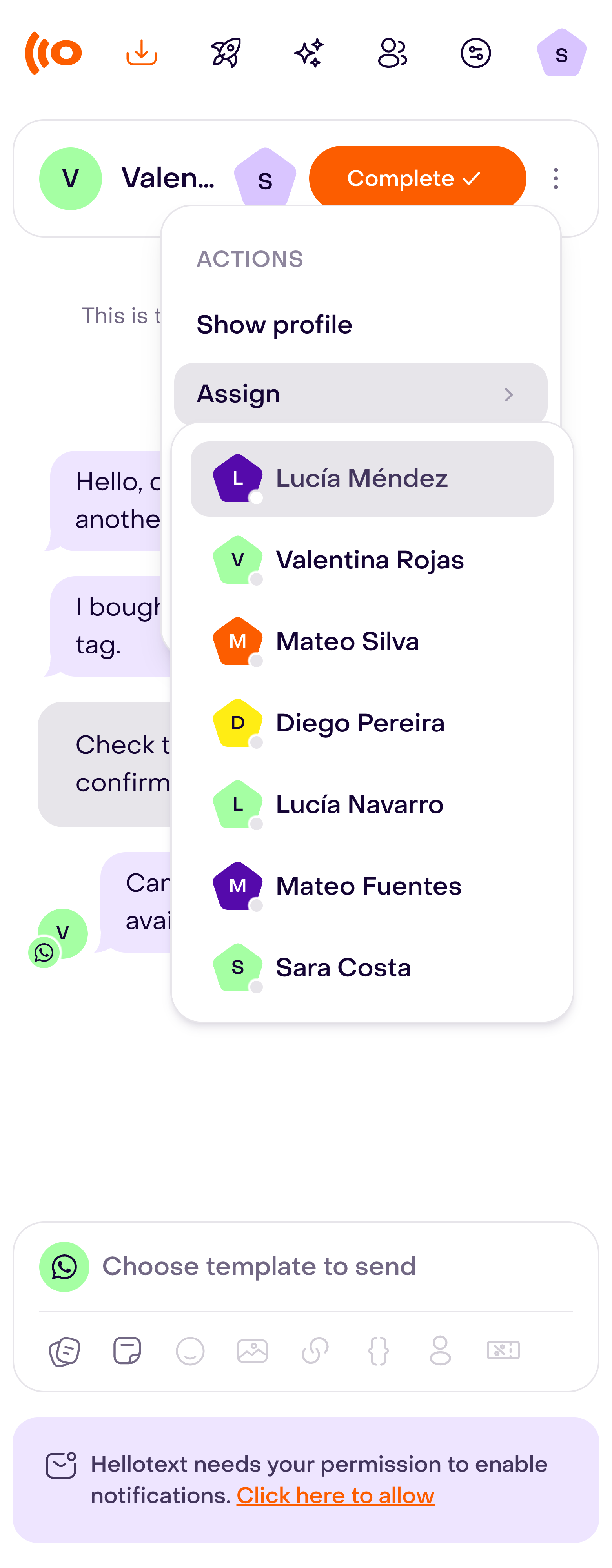
Use the same steps to reassign a conversation that already has an owner. Hellotext updates the assignee shown in the header and records the assignment in the conversation timeline. The new assignee can also receive an assignment notification. Assigning a closed or snoozed conversation to a different teammate returns it to active work.
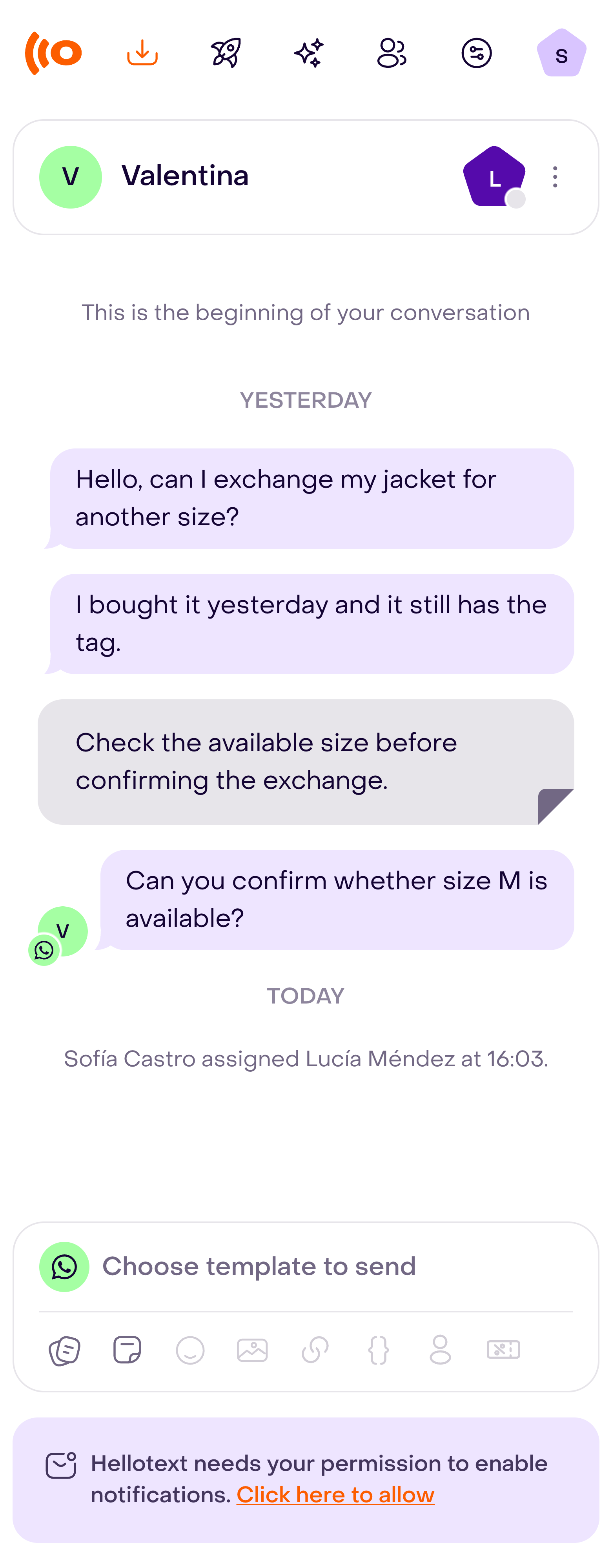
Before reassigning, add an internal note when the reason or next step is not already clear from the timeline. Assignment transfers responsibility, but it does not replace the context needed to continue the conversation.
Assign a conversation to an AI agent
If AI agents are associated with the conversation, the Assign menu shows an AI Agents group.

Choose one of the available agents to transfer the conversation to it. Hellotext removes the human assignee and sets the AI assignment for that conversation. If the group is not present, there are no associated agents to show.
Use manual AI assignment for a deliberate handoff. For automatic intent selection, unresolved paths, and escalation back to a person or team, use the playbook or journey configuration instead.
Keep reading: AI handoff to Inbox.
Understand assignments to a team
A playbook, AI agent, journey, or routing rule can target a team rather than a specific teammate.
When that happens:
- Hellotext can assign the conversation to an eligible member of the target team.
- Availability and conversation capacity affect who can receive it.
- If the team is at capacity, the conversation can remain Unassigned while keeping that team as its intended destination.
- When capacity becomes available, Hellotext can assign the waiting conversation to an eligible member.
An unassigned conversation that is waiting for a team is not the same as unrestricted work. Avoid manually overriding its destination unless someone is intentionally taking responsibility for it.
Keep reading: Teams and Inbox capacity.
Assign multiple conversations
Use a batch assignment when several conversations should move to the same person.
- Select the conversations from the Inbox list.
- Choose Assign to me to take the selection yourself.
- To choose someone else, open the batch Actions menu, select Assign, and choose a teammate.

Review the selection before assigning it. Batch assignment runs in the background; check each conversation’s assignee when it finishes. It also returns the closed or snoozed conversations it assigns to active work. It does not add a shared note or resolve differences in customer context.
What assignment does not change
Assignment changes responsibility. It does not by itself:
- Send a response to the customer.
- Clear Needs attention.
- Close or snooze the conversation.
- Turn an internal note or mention into ownership.
- Guarantee that an assigned person is currently available.
Use an internal note for private context, a mention to request attention, Snooze when work should return later, and Complete when no further action is needed.